

In the realm of heavy - equipment diagnostics and maintenance, the latest version of CAT SIS (Caterpillar Service Information System) stands as a pivotal tool. As a trusted supplier of the latest version of CAT SIS, I understand the importance of customizing its interface to meet the diverse needs of our customers. This blog will delve into the detailed steps and strategies on how to customize the interface of the latest version of CAT SIS, offering valuable insights for users aiming to enhance their diagnostic and maintenance workflows.
Understanding the Basics of CAT SIS Interface Customization
Before diving into the customization process, it's essential to have a solid understanding of the CAT SIS interface. The latest version of CAT SIS comes with a user - friendly and intuitive layout, but its true power lies in its ability to be tailored according to individual preferences. Customization can range from simple adjustments like changing the color scheme to more complex configurations such as rearranging toolbars and adding personalized shortcuts.

Simple Interface Customization Steps
1. Color Scheme and Theme Selection
The first step in customizing the CAT SIS interface is to choose a color scheme and theme that suits your visual preferences. A well - chosen color scheme can reduce eye strain, especially during long hours of use. In the latest version of CAT SIS, you can easily access the settings menu to find the color scheme options. Select from a range of pre - defined themes or even create a custom color combination that works best for you.
2. Toolbar Rearrangement
Toolbars in CAT SIS are designed to provide quick access to frequently used functions. However, different users may have different usage patterns. You can rearrange the toolbars by simply clicking and dragging the icons to your desired positions. This allows you to group related functions together, making it easier to find and use them when needed. For example, if you often use the diagnostic and maintenance tools, you can group them on the main toolbar for faster access.
3. Adding and Removing Shortcuts
Shortcuts are a great way to streamline your workflow. In the latest version of CAT SIS, you can add shortcuts to your most frequently used functions. Right - click on the desktop or in the toolbar area and select the option to add a shortcut. You can choose from a list of available functions and assign a unique key combination for each shortcut. Conversely, if there are shortcuts that you rarely use, you can remove them to keep the interface clean and uncluttered.
Advanced Interface Customization
1. Customizing Dashboard Views
The dashboard in CAT SIS provides an overview of important information such as system status, diagnostic codes, and maintenance schedules. You can customize the dashboard by adding or removing widgets. For instance, if you want to focus more on the diagnostic codes, you can add a widget that displays the latest codes in real - time. On the other hand, if you don't need certain information, you can remove the corresponding widget to free up space.
2. Configuring User Profiles
The latest version of CAT SIS allows you to create multiple user profiles. Each profile can have its own set of customized interface settings. This is particularly useful in a team environment where different users may have different preferences and requirements. For example, a senior technician may prefer a more advanced interface with all the available tools, while a junior technician may need a simpler, more streamlined interface.
Leveraging Complementary Tools for Enhanced Customization
1. Integration with Communication Adapters
To fully utilize the capabilities of CAT SIS, it's important to integrate it with compatible communication adapters. For instance, the Cat 478 - 0235 Communication Adapter Iii 2024a and Cat 317 Communication Adapter 3 are excellent choices. These adapters ensure seamless communication between the diagnostic equipment and the CAT SIS software, enhancing the overall diagnostic accuracy and efficiency.
2. Utilizing Cat Electronic Technician Software
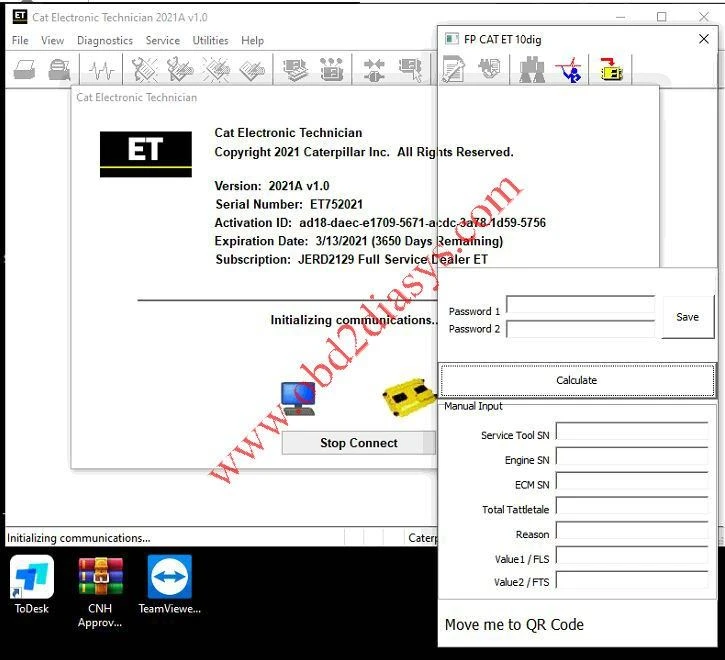
The Cat Electronic Technician Cat Et 2024a can be integrated with CAT SIS to further enhance its functionality. This software provides advanced diagnostic capabilities and can be customized to work in harmony with the CAT SIS interface. You can configure the software to display relevant diagnostic information in the CAT SIS dashboard, making it easier to analyze and troubleshoot issues.
Benefits of Interface Customization
1. Improved Efficiency
By customizing the CAT SIS interface, you can reduce the time spent searching for functions and tools. This leads to a more efficient diagnostic and maintenance process, allowing you to complete tasks more quickly and accurately.
2. Enhanced User Experience
A customized interface that suits your personal preferences provides a more comfortable and enjoyable user experience. This can reduce fatigue and increase job satisfaction, especially for technicians who use the software on a daily basis.
3. Tailored Workflow
Customization allows you to create a workflow that is specifically tailored to your needs. Whether you are a solo technician or part of a large team, you can configure the interface to match your unique work processes.
Conclusion
Customizing the interface of the latest version of CAT SIS is a powerful way to optimize your diagnostic and maintenance workflows. From simple color scheme changes to advanced configurations with complementary tools, there are numerous ways to make the software work for you. As a supplier of the latest version of CAT SIS, we are committed to helping you get the most out of this powerful tool. If you are interested in learning more about CAT SIS customization or are looking to purchase the software and related accessories, we invite you to contact us for a detailed discussion. Our team of experts is ready to assist you in finding the best solutions for your specific needs.
References
- Caterpillar Service Information System User Manual
- Technical documentation for Cat 478 - 0235 Communication Adapter Iii 2024a
- Technical documentation for Cat 317 Communication Adapter 3
- Technical documentation for Cat Electronic Technician Cat Et 2024a


